Story Cutter
How to make an AI rough cut inside Premiere Pro
An AI rough cut in Premiere Pro should start from words, not from hours of blade work. Story Cutter reads Premiere's native transcript export, surfaces soundbites and narrative beats from your prompt, and places trimmed clips on your active timeline — you never leave the NLE. The assistant is dialogue-only: it selects and arranges spoken content from a transcript; b-roll, graphics, and silent montage still happen manually in Premiere after the assembly. This guide condenses the Story Cutter Assistant documentation and the faster story-editing workflow page into an editor-facing walkthrough: prepare a source sequence, export JSON from the Text panel, attach the file in Chat Video Pro, link the purple source pill, write a brief with runtime and platform, then review the paper cut and hit Insert Rough Cut. Multicam teams can stack synced angles on V1/V2+ before transcribing so inserts try to carry every angle at each timecode. Expect a thinking card while the model scans — under thirty minutes of transcript often returns in under a minute; multi-hour interviews may take several minutes unless you switch to Gemini 3.1 Pro for full-context passes. After insert, refinement prompts like shortening a section, swapping a hook, or removing a topic reuse the same thread without re-uploading JSON.
Why transcript-first beats blade-only rough cuts
Blade-only assemblies force you to scrub pauses, ums, and dead air by ear. Transcript editing lets you scan speech at reading speed, mark keepers, and see structure before you commit ripple trims. For interviews, podcasts, tutorials, and event recaps, that shift routinely saves hours on the first pass — especially when you need multiple deliverable lengths from one shoot.
Story Cutter keeps quotes verbatim with timecodes tied to clip positions on your source sequence. That precision is why Premiere's JSON export matters: generic SRT or text from outside tools do not carry the frame-accurate anchors Story Cutter needs. Treat the paper cut as a first assembly you refine with normal Premiere tools, not a locked picture cut.
The workflow doc contrasts blade-only research (watch everything, take notes, repeat per deliverable) with transcript-first search: describe runtime and platform once, get a paper cut, insert, refine. Hard constraints stack in chat — timecode windows, required topics, excluded topics, named lines, tone caps — and apply to the next paper cut without restarting. /batch lists TikTok, YouTube, and long-form tasks in one message; each result keeps its own Insert Rough Cut button.
Story structures are selectable by platform: short-form Hook → Payoff → Proof → CTA; YouTube Problem → Credibility → Steps → Result → CTA; tutorials with cold open and resolution; documentary three-act shapes. You can name them in the prompt or let the model infer from platform plus content type.
Prepare your source timeline
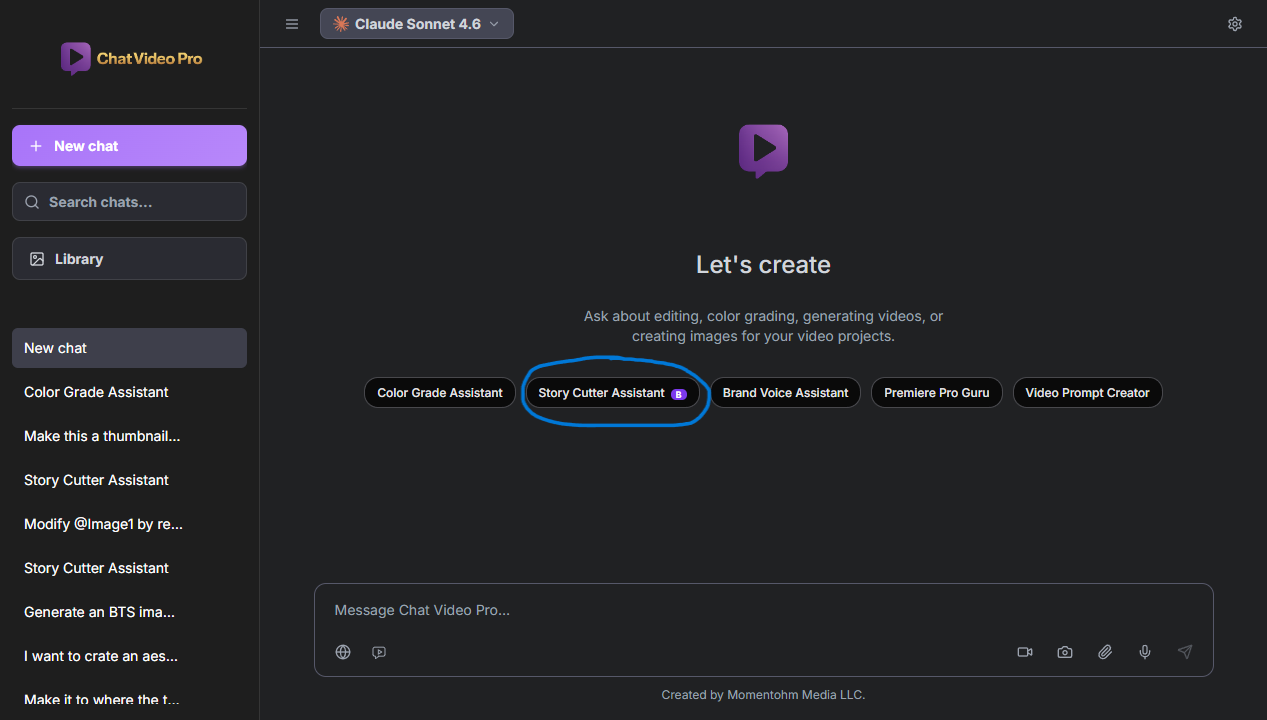
Put all interview or podcast footage on a dedicated source sequence — one timeline per video when you are batching several projects. Sync multicam or multi-angle clips before you transcribe; Story Cutter can walk stacked video tracks on Insert Rough Cut when each angle is its own clip at the same timecode. Stack primary on V1, second angle on V2, and avoid empty video tracks below your cameras so inserts do not skip an angle.
Do not move clips after transcription. Timestamps lock to positions; rearranging footage breaks sync and requires a fresh JSON export. Name the source sequence clearly (for example "Interview - Story Cutter") so auto-link can match the transcript filename.
Export your Premiere transcript (.json)
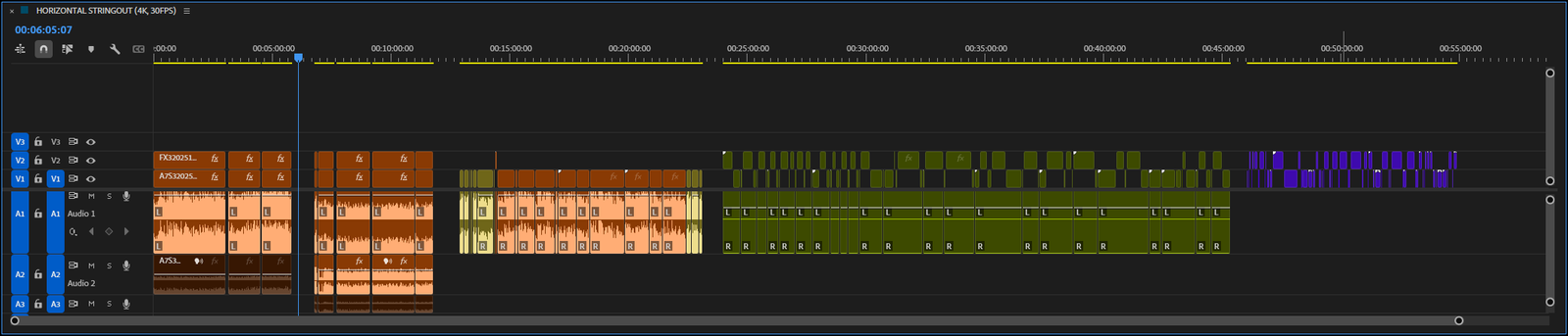
In Premiere, open Window → Text, transcribe if needed, then use the three-dot menu → Export as transcript file → save as .json in your project Documents folder. Plain text, SRT, VTT, or exports from Descript, Rev, or Otter are not supported because they lack per-clip timeline anchors.
Start Story Cutter and link the source sequence
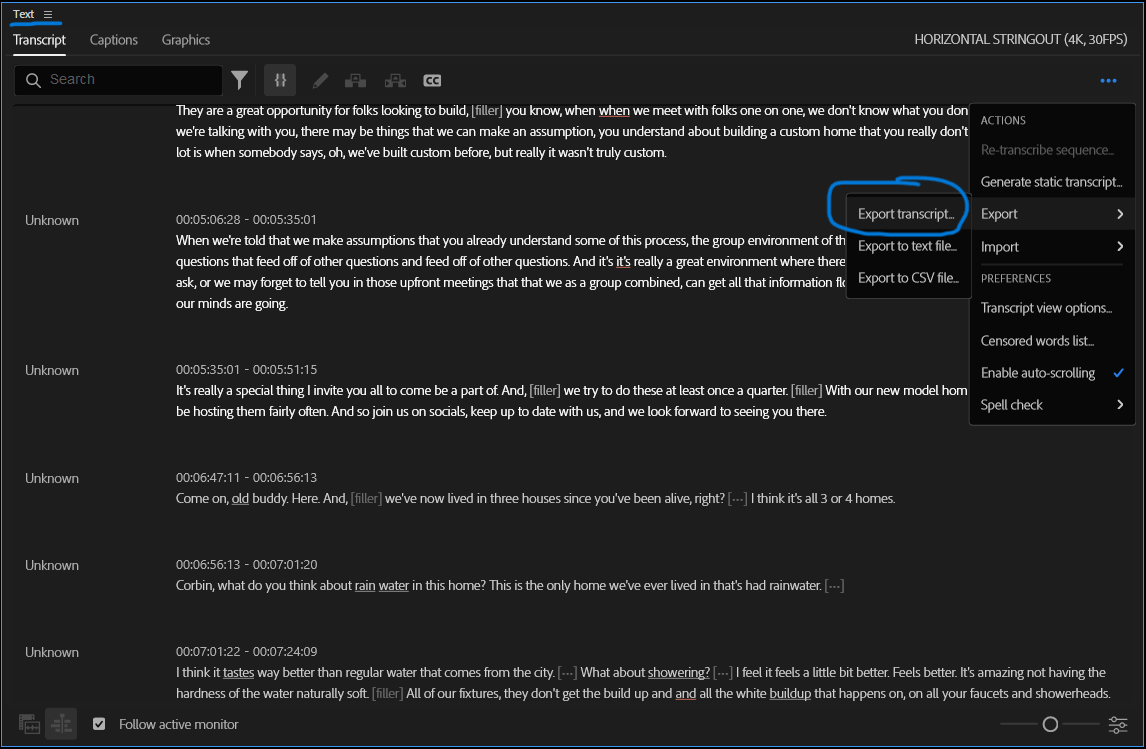
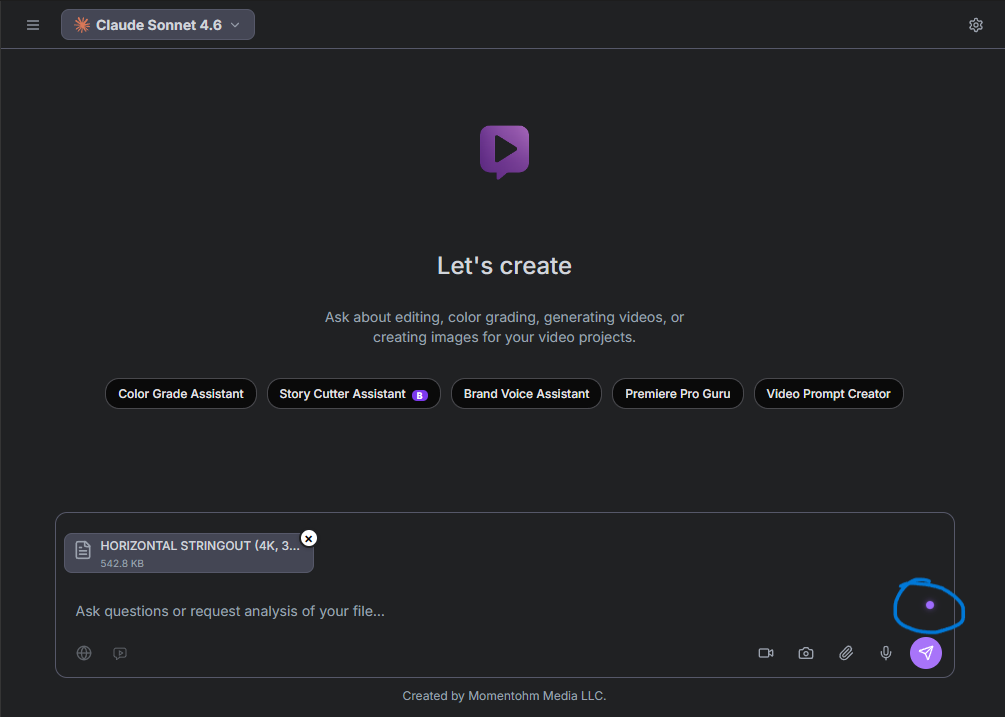
Open Chat Video Pro, click the Story Cutter starter, and attach the JSON with the paperclip. A purple pill confirms the transcript loaded. Click the pill to link the Premiere sequence you transcribed — matching filenames auto-link; otherwise pick the sequence manually. Optional creative briefs attach the same way: client PDFs, show bibles, or /creative brief in chat for planning before the cut.
Write a prompt that briefs the cut
Include ideal runtime, platform (YouTube, TikTok, corporate web, etc.), video type, and how you want the open and close to feel. Optional tone, topics to emphasize, and exclusions sharpen results. Voice dictation in the composer works — conversational briefs are fine. Example: five-minute YouTube tutorial on workspace setup, strong hook, subscribe CTA, educational tone.
- Ideal runtime — sets target duration
- Platform — drives pacing and structure
- Video type — interview, vlog, tutorial, recap
- Hook and CTA guidance — how the piece should open and land
Review the paper cut and insert on the timeline
Story Cutter streams a paper cut: verbatim soundbites, HH:MM:SS:FF timestamps, section labels, visual break markers, and editor notes. Click a timestamp to preview on the source sequence; click ↓ on one line to insert a single soundbite at the playhead. For a full assembly, scroll to Insert Rough Cut — clips trim in story order with section markers above the edit. Park the playhead where the cut should start first.

Refine in the same thread: shorten a section, swap a hook, remove a topic, or run slash commands like /social clip, /select pass, /top 5 soundbites, and /batch for multi-deliverable shoots. Long transcripts (two hours plus) benefit from Gemini 3.1 Pro's large context window per the docs model guidance.
Premiere timeline tips after the AI pass
Treat AI cuts as string-outs: ripple trim, add Studio B-roll, nest multicam, and grade in Lumetri on the same sequence. Recommended doc workflow is Source → Selects → Rough Cut: run /select pass to a selects timeline with markers, then build the client cut from surfaced moments. Sync before transcribe so multi-angle inserts arrive with every track when possible.
Full Story Cutter reference on Gitbook
Slash commands, multicam troubleshooting, model recommendations, and batch examples live in the Story Cutter Assistant guide and the AI-assisted story editing workflow doc.
→ Story Cutter Assistant: https://docs.chatvideopro.com/conversation-starters/story-cutter-assistant — Workflow overview: https://docs.chatvideopro.com/workflows/how-to-cut-videos-faster-with-ai-assisted-story-editing-in-premiere-pro
Frequently asked questions
- Does Story Cutter replace my NLE?
- No — it assembles dialogue selects inside Premiere; you still edit, mix, and finish in your existing project.
- What transcript format is required?
- Premiere Pro native JSON export from the Text panel — not SRT, VTT, or third-party text-only exports.
- Can I use multicam footage?
- Yes with stacked synced clips on separate video tracks; a single multicam clip on one track counts as one angle.
- How much does a rough cut cost?
- Story Cutter bills through your connected LLM providers; most long-form cuts are well under a dollar per the Pricing doc estimates.
Try Chat Video Pro
AI rough cuts, Studio generation, and wholesale billing — all inside Adobe Premiere Pro. One-time license, no platform subscription.
Related guides
- Transcript-based editing: the fastest workflow for interview and podcast video →
- Why pay-per-use AI beats credit-based subscriptions for editors →
- How to install an AI plugin in Premiere Pro (2026 guide) →
- The best AI video generation models for cinematic work in 2026 →
- Multi-angle AI generation: replace multi-cam shoots inside Premiere →
Technical reference: docs.chatvideopro.com