Workflows
Transcript-based editing: the fastest workflow for interview and podcast video
Transcript-based editing treats spoken word as searchable, editable text: you find keepers at reading speed, delete fillers, and reorder beats before frame-accurate trimming. For interview and podcast video, that loop routinely beats scrubbing waveforms for the first assembly. Chat Video Pro keeps the entire pass inside Adobe Premiere Pro — export JSON from the Text panel, attach it to Story Cutter, link your source sequence, and insert a rough cut with section markers without opening a separate transcript NLE. This workflow article summarizes the official "cut videos faster with AI-assisted story editing" guide plus Story Cutter setup rules: dialogue-only scope, optional creative briefs, /batch for multi-platform deliverables, and hard constraints you can stack in natural language.
Transcript editing basics for video editors
The mental model matches text-driven audio editors, but the sequence in Premiere is the source of truth. Transcript lines carry timecodes anchored to clip positions — edit the story in chat, then land trims on the timeline. Auto-captioning displays text for viewers; transcript editing uses text to decide what stays on the timeline. Keep those roles separate when briefing clients.
Story Cutter is dialogue-only: it does not analyze b-roll, graphics, or silent montage. Plan visual coverage as a second pass in Premiere after the spoken assembly exists.
Export JSON and attach in Story Cutter
Window → Text → transcribe → three-dot menu → Export as transcript file → .json. Attach in Story Cutter with the paperclip; confirm the purple pill. Link the sequence you transcribed (filename match auto-links). Do not move clips afterward or timestamps desync.
- Supported: Premiere native JSON with per-clip anchors
- Not supported: SRT, VTT, plain text, Descript/Rev/Otter exports
- Optional: attach PDF, DOCX, TXT, or MD briefs in the same thread
Interview rough cut workflow
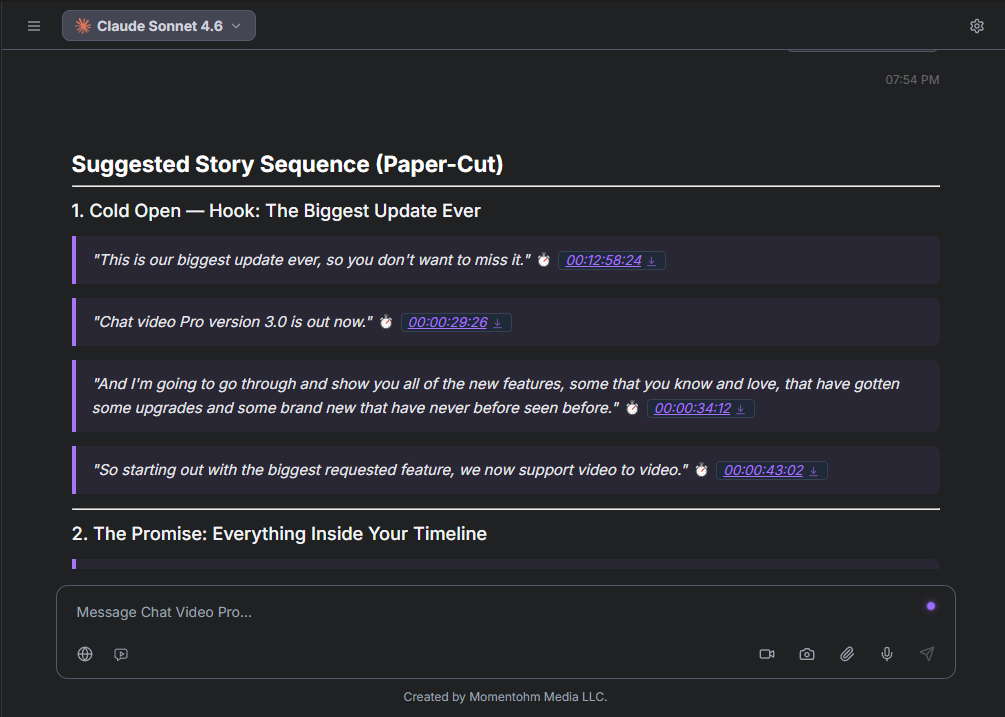
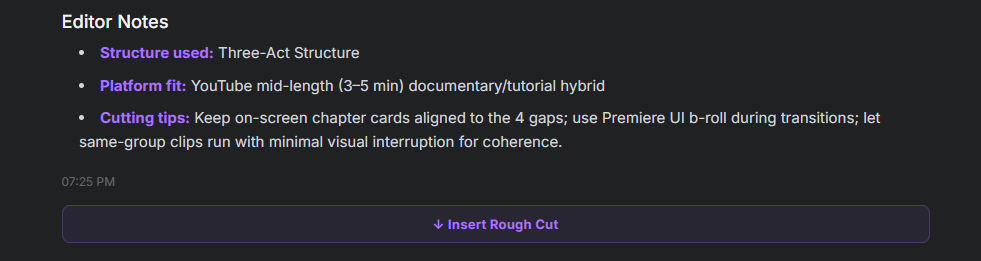
Write one or two sentences with platform, runtime, and story goal — for example a five-minute YouTube tutorial with hook and subscribe CTA, or a sixty-second Reel from the Q&A with energetic pacing. Story Cutter returns a paper cut with verbatim quotes, section labels, and editor notes. Click timestamps to preview, ↓ for single inserts, or Insert Rough Cut for the full string-out with markers.
/batch and hard constraints
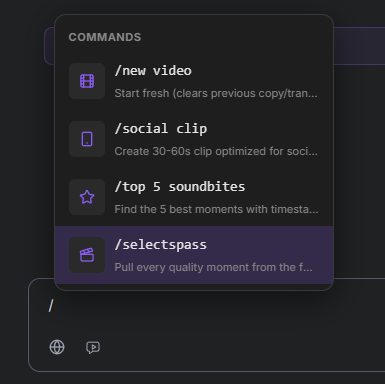
When one shoot needs TikTok, YouTube, and long-form versions, /batch lists tasks in one message — each line gets its own paper cut and insert button. Constraints stack: timecode ranges, required or excluded topics, named soundbites, tone caps. Example batch from the docs: five-minute YouTube product demo, sixty-second Reel from Q&A, three best hooks — processed sequentially in the same transcript context.
Podcast-to-video and multicam podcasts
Podcast video often pairs a static wide with clip pulls — transcript search finds moments faster than hunting waveforms. Multicam podcasts should sync stacked angles before export; Insert Rough Cut tries to bring multiple tracks when each angle is its own clip. Single multicam clips on one track count as one layer — stack synced clips for true multi-angle output.
Premiere-native vs Descript-style workflows
Descript excels as its own editor with a strong text UX. Chat Video Pro fits teams standardized on Premiere who want transcript intelligence without migrating projects or re-exporting XML for color and mix. Compare license and integration on /compare/chat-video-pro-vs-descript; generation economics follow wholesale FAL billing rather than Descript credits.
Handoff to color, sound, and graphics
Because cuts live on your Premiere sequence, send the same project to color and mix without round-tripping through a standalone transcript app. Add Studio B-roll, thumbnails, or Multi-Cam coverage on the same timeline after dialogue is locked.
Full transcript workflow on Gitbook
Story structures by platform, slash command tables, and multicam troubleshooting are maintained in the workflow and Story Cutter Assistant pages.
→ AI story editing workflow: https://docs.chatvideopro.com/workflows/how-to-cut-videos-faster-with-ai-assisted-story-editing-in-premiere-pro — Story Cutter Assistant: https://docs.chatvideopro.com/conversation-starters/story-cutter-assistant
Frequently asked questions
- Is transcript editing the same as auto-captioning?
- Captions are for viewers; transcript editing drives edit decisions on the timeline.
- Can I use this for YouTube interview clips?
- Yes — pull soundbites from long transcripts, then add Studio B-roll on the same sequence.
- How does this compare to Descript pricing?
- See /compare/chat-video-pro-vs-descript for license model and Premiere integration differences.
- What Premiere version do I need?
- Premiere Pro 2025 or newer; install steps are in our 2026 plugin install guide.
Try Chat Video Pro
AI rough cuts, Studio generation, and wholesale billing — all inside Adobe Premiere Pro. One-time license, no platform subscription.
Related guides
- How to make an AI rough cut inside Premiere Pro →
- How to install an AI plugin in Premiere Pro (2026 guide) →
- Why pay-per-use AI beats credit-based subscriptions for editors →
- The best AI video generation models for cinematic work in 2026 →
- Multi-angle AI generation: replace multi-cam shoots inside Premiere →
Technical reference: docs.chatvideopro.com